
The Elevate Screen
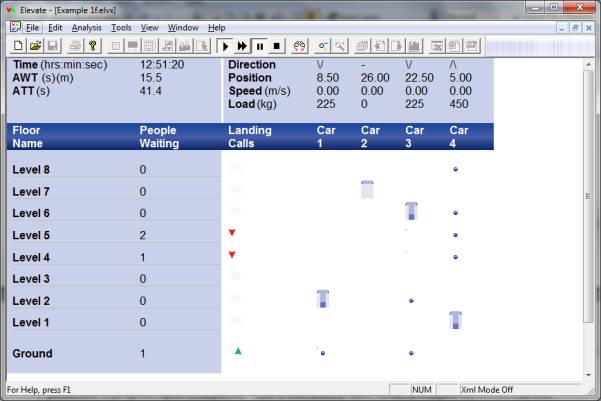
Figure 1 Elevate screen
Main Display Area
The main display area provides a graphical representation of the building. When a simulation is running, the elevators and calls placed on the system are displayed. When a Round Trip Time calculation is being performed, a progress report is displayed. This is discussed in more detail in Running the Analysis. Once the analysis is complete, the main display area provides a preview of the data and results that can be printed. This is discussed in Viewing the Results
Accessing Elevate Commands
Commands can be accessed from the menu system in the conventional manner using the mouse. Alternatively, shortcut keyboard commands can be used, e.g. press Alt plus F to select file menu, then P to select print (the underlined letter denotes the shortcut key). Some frequently used commands can also be accessed from the Toolbar. A description of each button’s function is displayed when the mouse pointer is placed on the button (without clicking). The Toolbar can be dragged to a new position if required (point to a blank portion of the Toolbar, click and drag).
File Menu
The File menu offers the following commands:
New
Creates a new document.
Open
Opens an existing document.
Close
Closes an opened document.
Save
Saves an opened document using the same document name.
Save As
Saves an opened document to a specified document name.
Page Setup
Edits the number of lines per page for the results print out. This increases/decreases the font sizes used.
Prints a document.
Print Preview
Displays the document on the screen as it would appear printed.
Print Setup
Selects a printer and printer connection.
Exit
Exits Elevate.
The File menu also provides a numbered list of the four most recently used documents. Select from this list for quick access to these documents.
Edit Menu
The Edit menu offers the following commands:
Job data
Information about the job.
Analysis Data
Information about the analysis.
Building Data
Information about the building.
Elevator Data
Information about the elevators.
Passenger Data
Information about the passengers.
Report Options
Options that select which results are presented.
The contents of these dialog boxes are discussed in the following chapters. Once you have opened one of these dialog boxes, you can switch between them quickly by using the Next and Back buttons.
Analysis Menu
The Analysis menu offers the following commands:
Run
Runs the analysis.
Run Fast
Runs the analysis as quickly as possible.
Pause
Pauses the analysis.
Pause Look
Pauses the analysis and review the status of the elevators and calls.
Stop
Stops the analysis.
Run Batch
Select a folder and batch run all the Elevate files in that folder.
Delete Result
Deletes the analysis results.
Tools Menu
The Tools menu offers the following
commands:
Kinematics
Provides analysis of a trip according to the specified speed, acceleration and jerk.
Count
Starts the Elevate Passenger Count application.
System Stimulation
Provides a list of calls in a format that can be used to stimulate a real elevator system.
Motion
Starts the Elevate Motion application.
Recorder
Select this option to record the next simulation to a video file.
Elevate Live Web Control
Starts the ELive Web Control application.
Elevate Live Fetch Log File
Retrieves ELive Historical web logs.
View Menu
The View menu offers the following commands:
Zoom In
Magnifies the view of the display.
Zoom Out
Reduces the view of the display.
Summary Results
Displays a summary of all results if a range of configurations has been analysed.
Next Results
Displays the next set of results if a range of configurations have been analysed.
Previous Results
Displays the previous set of results.
Results Spreadsheet
Transfers the current set of results to an Excel spreadsheet.
Results Word Processor
Transfers the current set of results to a Word document.
Results pdf
Generates a pdf file of the Elevate report.
Results Graphs
Presents a dialog in which you can view results graphs individually.
Toolbar
Shows or hides the toolbar.
Status Bar
Shows or hides the status bar.
Window Menu
The Window menu offers the following commands:
Cascade
Arranges windows so that they overlap.
Tile
Arranges windows as non-overlapping tiles.
Arrange Icons
Arranges icons at the bottom of the window.
The Window menu also provides a numbered list of the documents that are currently open. Select a document from this list to make it the current, active document.
Help Menu
The Help menu offers the following commands:
Elevate Manual
Accesses the latest version of this manual via the Internet.
Elevate on the web
Opens Peters Research Ltd web pages for Elevate.
About Elevate
Displays Elevate’s About box.
Saving your own default data
Each time you start a new Elevate document, a standard set of default data is loaded. To create your own default data:
- Start a new Elevate document.
- Make any changes you want (e.g. U.S. units instead of metric, lists of standard elevator capacities, number of lines per page for the print out).
- Save the file as default.elvx in the directory in which Elevate is installed (normally C:\Program Files(x86)\Elevate).
This data will now be loaded each time you start a new document. If you delete default.elvx, the program will revert to using Elevate’s standard defaults.
Depending on your security settings, Windows might not allow you to save default.elvx directly into the directory in which Elevate is installed. In this instance, save default.elvx onto the desktop, and then copy the file into C:\Program Files(x86)\Elevate. You might need an administrator's password for this.